

What is this feature?
Individual App Activity Review allows you to dive deep into the usage analytics and performance metrics of a specific Playlab app. Unlike workspace activity review which shows usage across all your apps, this feature provides focused insights into how users interact with a particular app, including conversation patterns, feature usage, and engagement metrics. Think of it as having a microscope for your app’s performance. While workspace activity gives you the big picture across all your apps, individual app activity lets you examine the details of how one specific app is performing and being used by your audience.What is the Rationale for this feature?
While workspace activity review helps you understand overall usage patterns across all your apps, creators often need granular insights into how individual apps are performing. Without app-specific analytics, it’s difficult to identify which features within an app are most valuable, where users get stuck, or how to optimize the app’s content and functionality. Individual App Activity Review fills this gap by providing focused analytics that help creators understand user behavior within a specific app, identify optimization opportunities, and make targeted improvements to enhance the app’s effectiveness and user experience.Watch How to Review Individual App Activity
Watch a short demonstration of how to access and review individual app activity in Playlab.Accessing Individual App Activity
Navigate to the Activity Tab
Find and click the Activity tab in your app’s interface.
- Open your Playlab app in the builder or published view
- Look for the navigation tabs at the top: Build, Design, and Activity
- Click on the “Activity” tab to access the app’s analytics
Set Up Conversation Review (Optional)
Configure AI-powered conversation analysis for deeper insights.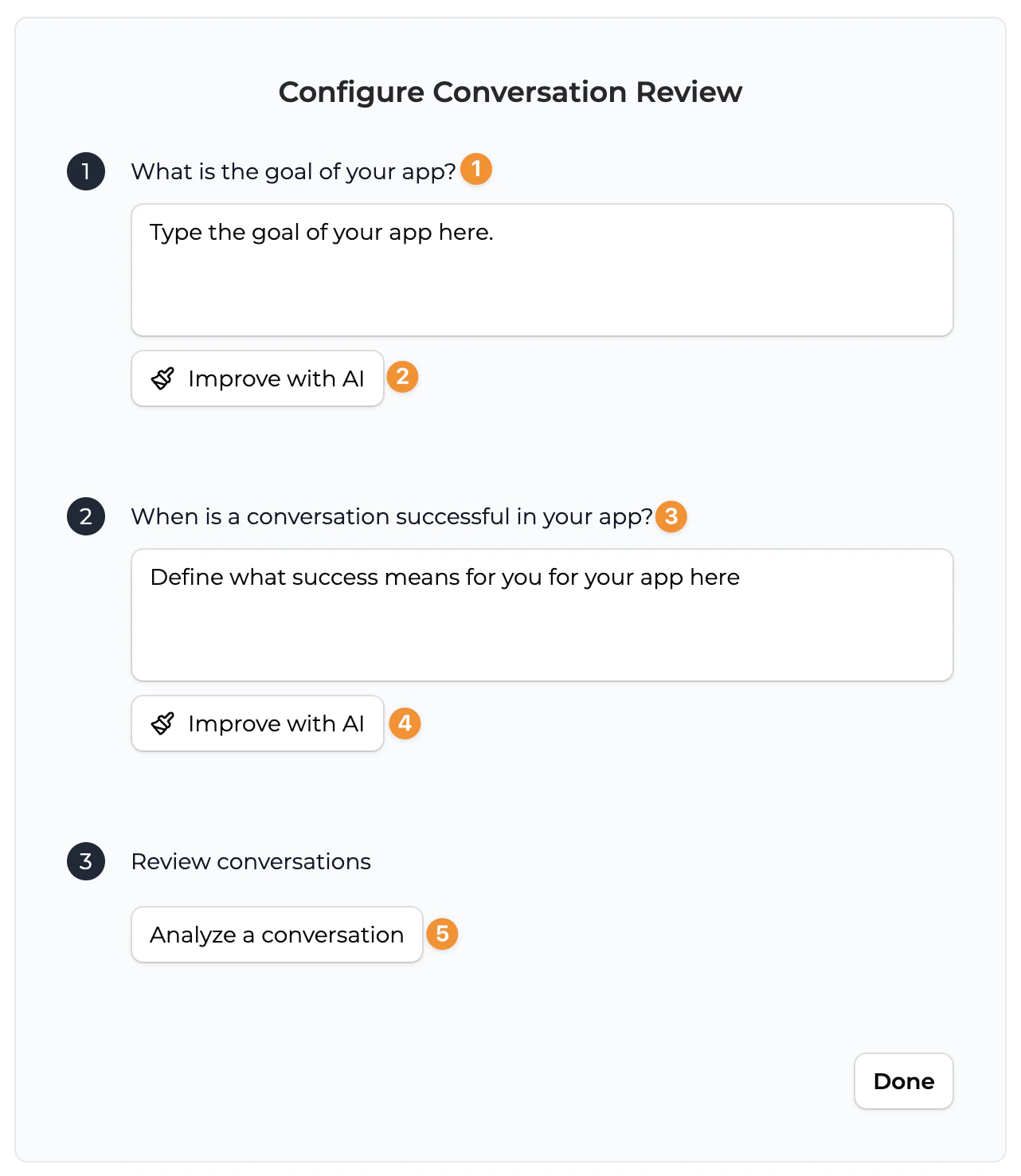
- Set up, “Configure Conversation Review” for AI-powered analysis. This feature teaches the model how to review conversations against your app’s specific goals
- Step 1: Clarify your app’s goal in the text field provided
- Step 2: You can have AI improve your goal if you’d like by clicking “Improve with AI”
- Step 3: Define what a successful conversation looks like for your app
- Step 4: Click “Improve with AI” if you’d like to leverage AI to improve your success criteria
- Click “Analyze a Conversation” or “Done” if you want to complete this setup at another time
Understanding Individual App Activity
Review Conversation Analysis Results
Examine how well conversations are meeting your app’s goals.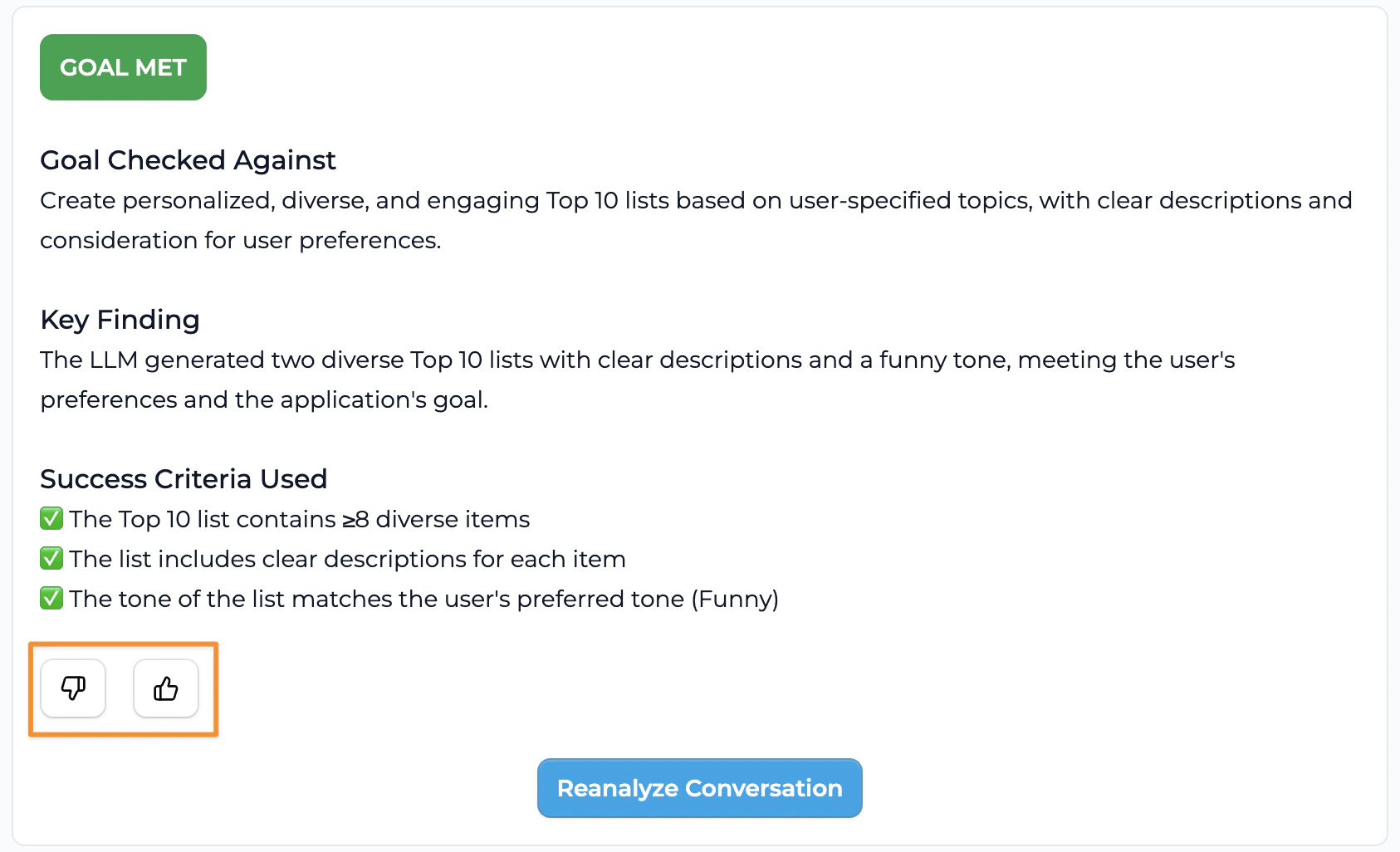
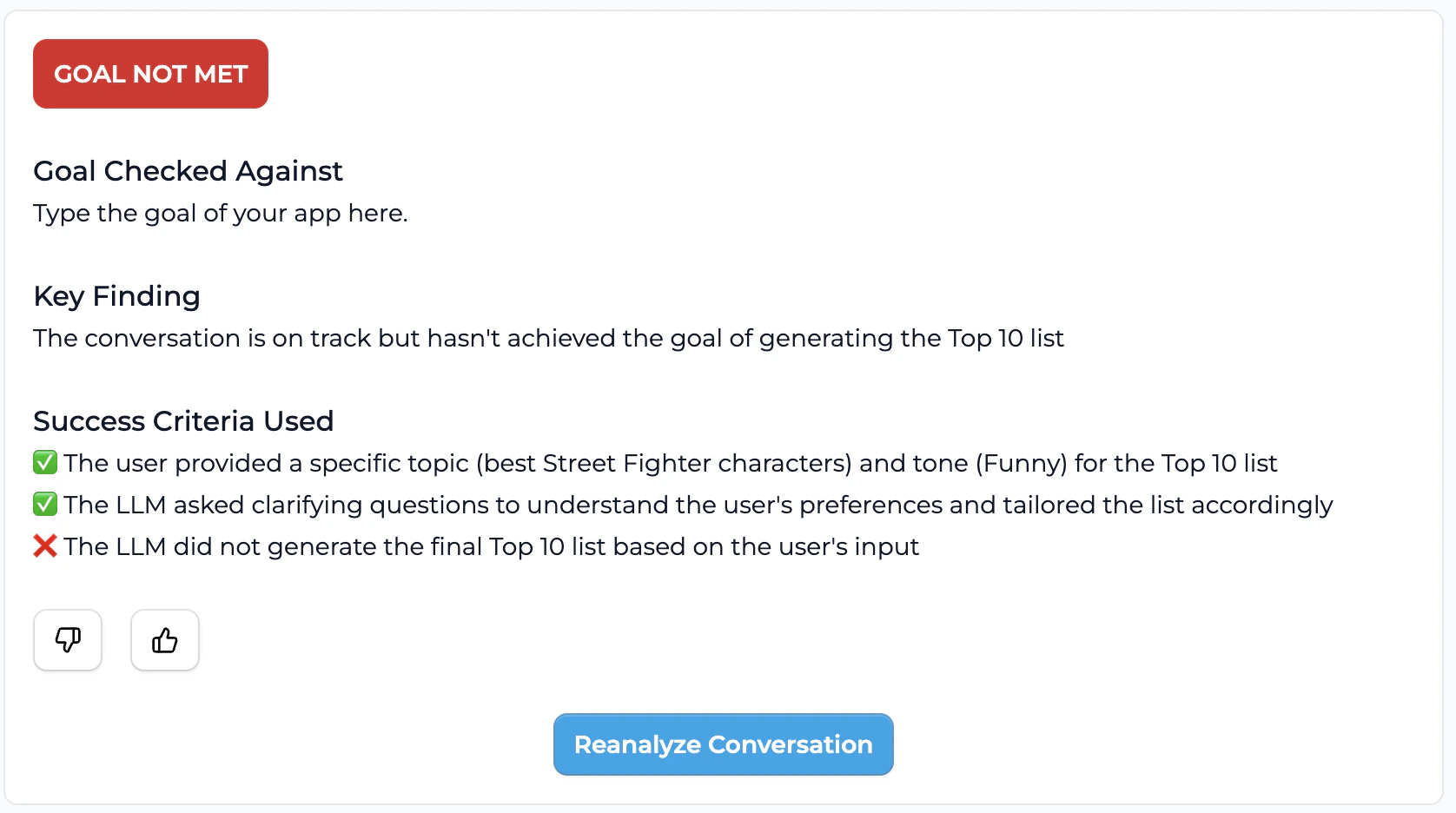
- View the status indicator: “GOAL MET” (green) or “GOAL NOT MET” (red) for each analyzed conversation
- Read the “Key Finding” summary that explains what happened in the conversation
- Check the “Success Criteria Used” section to see which specific goals were or weren’t achieved:
- ✅ Green checkmarks indicate criteria that were met
- ❌ Red X marks show criteria that were not fulfilled
- Use the thumbs up/down buttons to provide feedback on the AI analysis accuracy
Analyze Conversation Patterns
Use the Reanalyze feature to refine your understanding.
- Click “Reanalyze Conversation” to run the analysis again with updated criteria
- Review how changes to your success criteria affect the analysis results
- Look for patterns across multiple conversations to identify trends
- Note which types of interactions consistently meet or miss your goals
Monitor Activity Metrics
Track basic usage statistics and engagement patterns.
- Review conversation frequency and user engagement over time
- Monitor user retention and return visit rates
- See how well your app performs against your intended goals and criteria
Optimize Based on Insights
Use the analysis results to improve your app.
- Identify common failure points where conversations don’t meet goals
- Adjust your app’s prompts or instructions based on successful patterns
- Refine your success criteria as you better understand user needs
- Use the insights to guide future app development and improvements
Individual App Analysis Best Practices
Consider these recommendations when analyzing individual app activity:- Compare performance over time to identify trends and measure improvements
- Focus on conversation quality metrics like message depth and completion rates
- Identify your app’s “power users” to understand what drives engagement
- Look for common user pathways to optimize the most popular workflows
- Monitor feature adoption rates for new functionality you’ve added
- Track seasonal patterns specific to your app’s subject matter or use case
- Analyze drop-off points to identify where users lose interest or encounter problems
Best Practices
Optimizing Based on Usage Patterns
Optimizing Based on Usage Patterns
Use individual app data to make targeted improvements:
- High-engagement features: Double down on what’s working by expanding similar functionality
- Low-engagement areas: Redesign or remove parts of your workflow that aren’t being used
- Common user paths: Streamline and optimize the most popular workflows
- Drop-off points: Add guidance, simplify processes, or provide more direct workflow steps
Comparing Individual Apps
Comparing Individual Apps
When you manage multiple apps, use individual app analytics to:
- Benchmark performance across your app portfolio
- Identify successful patterns to replicate in other apps
- Allocate resources to your highest-performing or highest-potential apps
- Learn from outliers both positive and negative performance cases
User Feedback Integration
User Feedback Integration
Combine activity data with qualitative feedback:
- Correlate usage patterns with user comments and ratings
- Identify disconnect points where high usage doesn’t match user satisfaction
- Prioritize improvements based on both data and user requests
- Validate assumptions about how users want to interact with your app
Frequently Asked Questions
How does this differ from workspace activity review?
How does this differ from workspace activity review?
Individual App Activity Review focuses on a single app’s performance, while workspace activity review shows usage across all apps in your workspace. Individual app review provides:
- Deeper metrics specific to one app’s functionality
- Conversation-level insights into how users interact with the app
- Feature-specific usage data within the app
- Targeted optimization opportunities for that particular app
What specific metrics are available for individual apps?
What specific metrics are available for individual apps?
Individual app analytics include:
- It will evaluate based on your entered in criteria and goals
How detailed is the user interaction data?
How detailed is the user interaction data?
Individual app activity provides detailed interaction data while maintaining user privacy:
- Conversation flows: See how users navigate through your app
- Feature usage: Track which tools and options are most popular
- Session patterns: Understand how long and how often users engage
- Anonymous insights: All data is anonymized to protect user privacy unless they are members in your space.
How can I use this data to improve my app?
How can I use this data to improve my app?
Individual app activity data helps you make targeted improvements:
- Content optimization: Focus on topics and formats that generate the most engagement
- User experience: Streamline workflows based on common user paths
- Feature development: Prioritize new features based on usage gaps
- Performance tuning: Address technical issues that impact user experience
- Onboarding improvement: Reduce drop-off rates by optimizing the initial user experience
Related
Workspace Activity Review
Looking for an overview of activity across all your apps? Check out the Workspace Activity Review guide for filtering, trends, and workspace-level analytics.
Need Support?
If you need assistance with individual app activity review in Playlab:- Contact us at support@playlab.ai
Last updated: March 15, 2026